

How to Import Contract Notes into Journaira: A Step-by-Step Guide
A complete walkthrough for importing your Nigerian broker contract notes into Journaira — from understanding what a contract note is, to uploading it and seeing your trades appear automatically.
Quick Start (TL;DR)
If you already know what a contract note is and just want the steps:
- Click Import in the sidebar
- Select PDF Contract Notes → click Next
- Select PDFPlumber as your parser → click Next
- Drag and drop your contract note PDF → click Next
- Review the extracted data → click Next
- Done. Your trades are in your journal
Total time: about 30 seconds. Read on for the full walkthrough.
The Problem with Manual Trade Entry
You just bought 4,000 shares of CONOIL through your broker. The trade went through, you got your contract note by email, and now you want to log it in your trading journal. If you are entering trades manually, that means opening Journaira, typing in the stock symbol, the quantity, the price, the date, the commission, the SEC fee, the CSCS fee, the stamp duty, the VAT, and hoping you do not mistype any of it.
Multiply that by every trade you make in a month, and the numbers start to matter:
| Trades | Manual Entry | PDF Import | Time Saved |
|---|---|---|---|
| 1 trade | ~5 minutes | ~30 seconds | 4.5 minutes |
| 10 trades | ~50 minutes | ~3 minutes | 47 minutes |
| 50 trades | ~4 hours | ~10 minutes | 3.5 hours |
Manual entry is not just tedious; it is a source of errors that can distort your performance analytics and, more importantly, your capital gains tax calculations. A mistyped fee amount or a wrong trade date can throw off your entire FIFO cost basis.
There is a faster way. Journaira can read your broker's contract note PDF directly and extract all of the trade data automatically (every field, every fee, every line item) in about 30 seconds.
What Is a Contract Note?
Before we get into the import process, it helps to understand exactly what you are uploading. A contract note is the official confirmation document your stockbroker sends you after executing a trade on the Nigerian Exchange (NGX). It is not the same thing as a portfolio statement or an account summary.
Think of it this way:
| Document | What It Contains | When You Get It |
|---|---|---|
| Contract Note | Details of a specific trade: what was bought or sold, the price, quantity, fees, and total cost | After each trade execution |
| Portfolio Statement | A snapshot of everything you currently hold, including all your positions and their market values | Periodically (monthly, quarterly) |
| Account Statement | Transaction history over a period: deposits, withdrawals, dividends, trades | On request or periodically |
Journaira's PDF import is designed for contract notes, the per-trade documents. This is important because the structure of a contract note is standardised enough for our parser to extract data accurately, while portfolio statements vary too widely between brokers to parse reliably.
Anatomy of a Nigerian Contract Note
Here is a real contract note from a Nigerian broker (with personal details redacted), annotated to show each section:
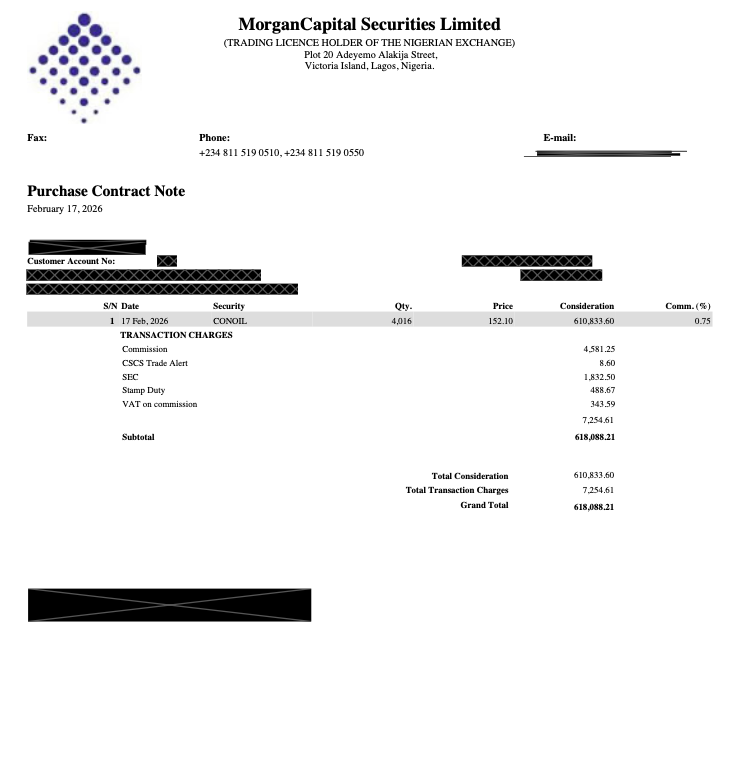
Every Nigerian broker's contract note contains the same core information, though the layout varies. Let us walk through each section from top to bottom:
1. Broker Information (Top Section) The broker's name, licence status ("Trading Licence Holder of the Nigerian Exchange"), and contact details (phone, fax, and email). This is how Journaira identifies which broker issued the note. Our parser reads this header and applies the correct extraction rules for that broker's specific layout.
2. Contract Type and Date Either "Purchase Contract Note" (you bought shares) or "Sale Contract Note" (you sold shares). The date directly below is when the trade was executed. This is the date that matters for your trading journal and for capital gains tax calculations, not the date the contract note was issued or the date it arrived in your email.
3. Customer Details (Redacted Area) Your name, customer account number, trading account number, email, CHN (Clearing House Number), and address. In the image above, these are blacked out for privacy. Journaira does not store this personal information. It is only present in the original PDF and is not captured during the import process.
4. Trade Details Table This is the core data:
- S/N: Serial number (line item number)
- Date: Trade execution date (e.g., 17 Feb, 2026)
- Security: The NGX stock symbol (e.g., CONOIL)
- Qty.: Number of shares traded (e.g., 4,016)
- Price: Price per share in Naira (e.g., 152.10)
- Consideration: Gross trade value, which is Quantity x Price (e.g., 610,833.60)
- Comm. (%): The broker's commission rate (e.g., 0.75%)
5. Transaction Charges Breakdown This section lists every fee charged on the trade:
- Commission: Your broker's fee (typically 0.5% to 1.5% of trade value)
- CSCS Trade Alert: Central Securities Clearing System alert fee
- SEC: Securities and Exchange Commission levy
- Stamp Duty: Government stamp duty on the transaction
- VAT on Commission: 7.5% VAT applied to the broker's commission
- Some brokers also list NGX Transaction Fee and CSCS Fee as separate line items
6. Totals
- Total Consideration: The gross trade value (before fees)
- Total Transaction Charges: Sum of all fees
- Grand Total (for purchase notes): What you actually paid, consideration + fees
- Total Proceeds (for sale notes): What you actually received, consideration minus fees
All of these fields are extracted automatically when you upload the contract note to Journaira. You do not need to type any of them.
Purchase Notes vs Sale Notes
The key difference between the two contract note types is in the totals section:
| Purchase Contract Note | Sale Contract Note | |
|---|---|---|
| Header | "Purchase Contract Note" | "Sale Contract Note" |
| Trade action | You bought shares | You sold shares |
| Fees | Added to consideration | Subtracted from consideration |
| Bottom line | Grand Total = Consideration + Fees (what you paid) | Total Proceeds = Consideration − Fees (what you received) |
| Tax relevance | Establishes your cost basis for the position | Determines your proceeds for capital gains calculation |
Both types are imported the same way. Journaira detects which type it is from the contract header and records the trade as a buy or sell accordingly.
Where to Find Your Contract Notes
Most Nigerian brokers deliver contract notes by email within hours of trade execution. Here is where to look:
- Email inbox: Search for "contract note" or your broker's name. The note is usually attached as a PDF.
- Broker portal/app: Some brokers (MorganCapital, Stanbic IBTC) let you download contract notes from your online account.
- WhatsApp/SMS: A few brokers send contract notes via messaging, though this is less common for the full PDF.
If you cannot find your contract notes, contact your broker directly. You are entitled to receive a contract note for every trade executed on your behalf. This is a regulatory requirement under NGX rules.
Tip: Create an email folder or label specifically for contract notes. When it is time to import a batch of trades into Journaira, you will know exactly where to find them.
What You Need Before You Start
Before importing your first contract note, make sure you have:
-
A Journaira account. PDF contract note import is available during your 30-day free trial (all features unlocked) and on the Professional plan thereafter. You do not need to upgrade to try it; every new account gets full access for 30 days, including PDF import. After the trial, you will need the Professional plan to continue importing PDFs, or you can switch to CSV import on the Basic plan.
-
Your contract note as a PDF file. The file your broker sent you, saved to your computer or phone. Journaira accepts PDF files up to 10MB.
-
A supported broker format. Journaira currently parses contract notes from major Nigerian brokers including MorganCapital, Stanbic IBTC, and others. The parser also has a generic mode that works with most standard Nigerian broker contract note formats.
Step-by-Step: Importing a Contract Note
The import wizard guides you through the process in five steps. At the bottom of each screen, you will see a Next button on the right to advance and a Previous button on the left to go back. The Next button stays disabled until you complete the required action on the current step, which prevents you from accidentally skipping ahead.
You will also see a progress bar at the top showing how far along you are, and small dot indicators between the navigation buttons showing each step.
Step 1: Go to the Import Page and Select "PDF Contract Notes"
From your Journaira dashboard, click Import in the sidebar navigation. This opens the import wizard.
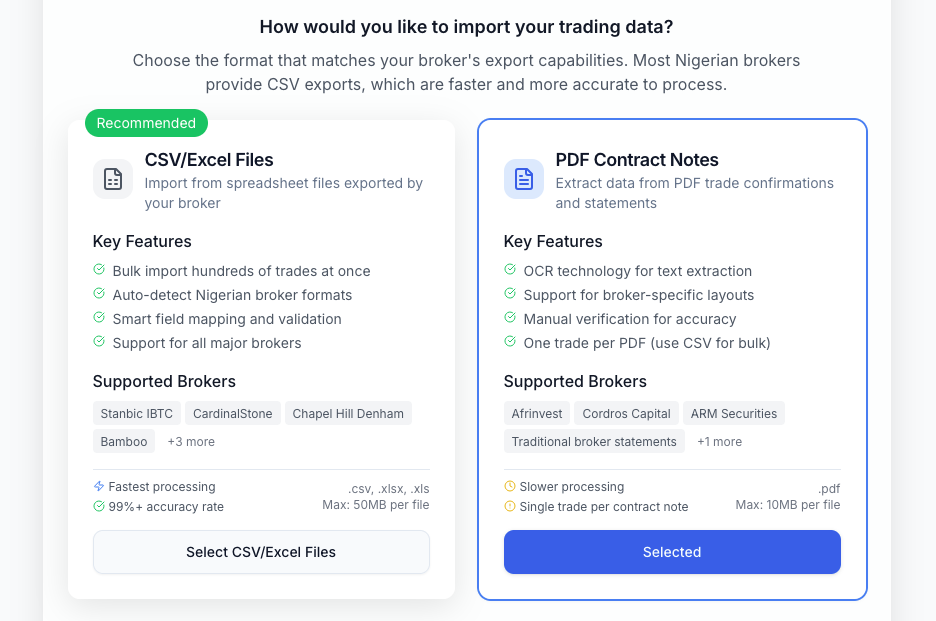
The first screen asks: "How would you like to import your trading data?" You will see two options side by side:
-
CSV/Excel Files (left, marked "Recommended"): For spreadsheet exports from your broker. Supports bulk import of hundreds of trades at once, auto-detects Nigerian broker formats, and works with all major brokers including Stanbic IBTC, CardinalStone, Chapel Hill Denham, and Bamboo.
-
PDF Contract Notes (right): For the contract note PDFs your broker emails you. Uses OCR technology for text extraction, supports broker-specific layouts, and includes manual verification for accuracy. Note that PDF import handles one trade per PDF (use CSV for bulk).
Click on the PDF Contract Notes card to select it. You will see it highlighted with a blue border and the button changes to "Selected". Then click Next at the bottom right to continue.
Step 2: Choose Your Parser
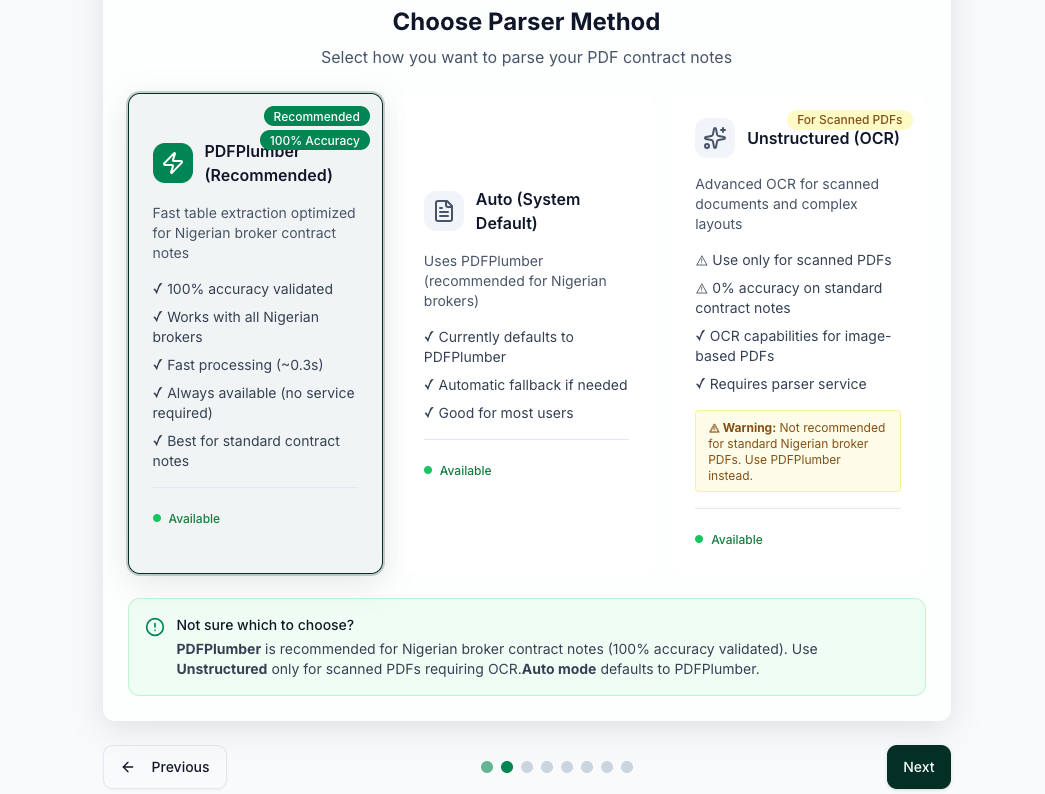
The wizard now shows the "Choose Parser Method" screen with three options:
-
PDFPlumber (Recommended): Highlighted with a "Recommended" and "100% Accuracy" badge. This is our primary parser, optimised for Nigerian broker contract notes. It is fast (~0.3 seconds), works with all Nigerian brokers, is always available with no external service required, and is the best choice for standard contract notes.
-
Auto (System Default): Currently defaults to PDFPlumber. Provides automatic fallback if the primary parser encounters issues. A good choice if you are not sure which to pick.
-
Unstructured (OCR): Labelled "For Scanned PDFs". This uses optical character recognition for image-based PDFs. Note the yellow warning box: it is not recommended for standard Nigerian broker PDFs and should only be used for scanned or photographed documents.
A helpful info box at the bottom reads: "Not sure which to choose? PDFPlumber is recommended for Nigerian broker contract notes (100% accuracy validated). Use Unstructured only for scanned PDFs requiring OCR. Auto mode defaults to PDFPlumber."
Select PDFPlumber (it may already be selected by default) and click Next to continue.
Step 3: Upload Your Contract Note
Now you will see the file upload screen:
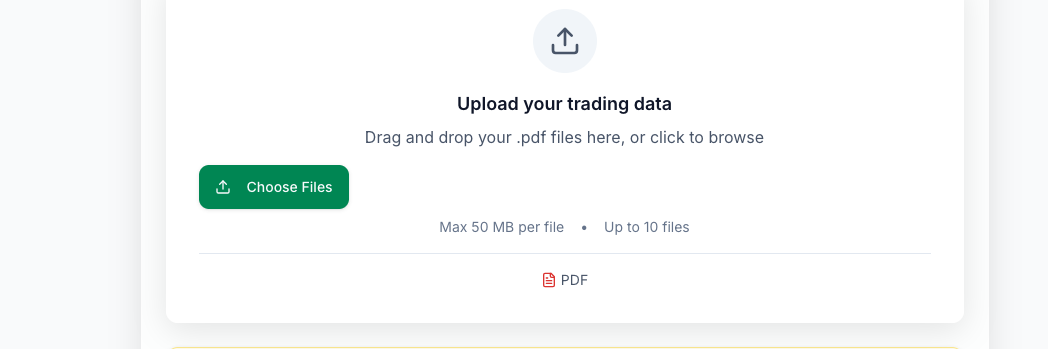
You can either:
- Drag and drop your PDF file directly into the upload area, or
- Click the green Choose Files button to browse and select the file from your computer
The screen shows the file limits: Max 50 MB per file and Up to 10 files. The accepted format is PDF, shown at the bottom of the upload zone.
Once you drop or select your file, Journaira validates it immediately:
- Is it a valid PDF?
- Is it within the size limit?
- Has this exact file been uploaded before? (We check file hashes to prevent duplicate imports)
If everything looks good, you will see your file listed with a green checkmark. If there is an issue (wrong file type, too large, already imported), you will see a clear error message explaining what went wrong.
Note: You might see a blue info box explaining the difference between contract notes and portfolio statements. This is a reminder that the PDF parser is designed for per-trade contract notes, not for portfolio summaries or account statements.
Once your file is uploaded and validated, the Next button becomes active. Click Next to continue.
Step 4: Preview the Extracted Data
Journaira now sends your file to the backend for processing. This usually takes a few seconds. During this time, you will see a progress indicator while the system parses the PDF, identifies the broker, extracts trade data, and validates everything against the NGX database.
Once processing is complete, you will see a data preview screen titled "Preview Your Data". This shows you exactly what was extracted from your contract note before anything is saved:
- Broker detected: The broker name identified from the contract note (e.g., "MorganCapital Securities Limited")
- Parser used: Which parsing engine extracted the data, with an accuracy badge
- Number of trades found: How many individual trade lines were extracted
- Summary statistics: Total value, date range, buy/sell breakdown
- Data quality score: How confidently the data was extracted
Take a moment to review this preview. The stock symbol, quantity, price, and consideration should match what you see on your original contract note. If something looks wrong, click Previous to go back and re-upload a different file.
If everything looks correct, click Next to finalise the import. Journaira will save the trades to your journal and take you to the final screen.
Step 5: Import Complete
You will now see the success screen, complete with a confetti celebration in Nigerian green and gold. This means your trades have been saved to your journal.
The success screen shows a summary of what was imported:
- Trades imported: The number of trades successfully added to your journal
- New positions: Any new stock positions created in your portfolio
- Portfolio value: Your updated total portfolio value
- Data quality: A percentage score reflecting how cleanly the data was extracted
Below the summary, you will find additional details: the number of duplicates removed (if any), errors fixed, total processing time, and the date range of the imported trades.
You will also see a "What's Next?" section with four options:
- View Dashboard: See your updated portfolio and the newly imported trades
- Import More: Start another import session for additional contract notes
- Explore Analytics: See how the new trades affect your performance metrics
- Tax Optimization: Check how the trades impact your capital gains tax position
That is it: five steps and about 30 seconds. What would have taken 5 to 10 minutes of careful manual entry, with the risk of typos in amounts and fee calculations, is handled automatically.
Quick Reference: The Five Steps
| Step | Screen | Action | Click |
|---|---|---|---|
| 1 | Choose Import Type | Select PDF Contract Notes | Next |
| 2 | Choose Parser | Select PDFPlumber (recommended) | Next |
| 3 | Upload Files | Drag and drop or browse for your PDF | Next |
| 4 | Preview Data | Review extracted trades and broker detection | Next |
| 5 | Import Complete | View summary and choose next action | View Dashboard or Import More |
Tip: You can click Previous at any step to go back and change your selections. If you need to cancel entirely, click the Cancel button in the top right. You will be asked to confirm before any progress is discarded.
What Exactly Gets Extracted?
When Journaira parses your contract note, it captures more data than you would typically enter manually. Here is what gets pulled from the PDF automatically, shown alongside the actual values from the example contract note above:
Trade Data
| Field | Extracted Value | Description |
|---|---|---|
| Trade Date | 17 Feb, 2026 | When the trade was executed on the NGX |
| Security/Symbol | CONOIL | The NGX stock symbol |
| Quantity | 4,016 | Number of shares traded |
| Price | ₦152.10 | Price per share |
| Consideration | ₦610,833.60 | Gross trade value (Qty x Price) |
| Contract Type | Purchase | Automatically detected from the header |
| Commission Rate | 0.75% | Broker's commission percentage |
Transaction Charges (Each Fee Extracted Separately)
| Fee | Extracted Value | What It Is |
|---|---|---|
| Commission | ₦4,581.25 | Broker's fee (0.75% of consideration) |
| CSCS Trade Alert | ₦8.60 | Clearing system notification fee |
| SEC Fee | ₦1,832.50 | Securities & Exchange Commission levy |
| Stamp Duty | ₦488.67 | Government duty on the transaction |
| VAT on Commission | ₦343.59 | 7.5% VAT on the broker commission |
| Total Charges | ₦7,254.61 | Sum of all fees |
Totals
| Total | Extracted Value | Meaning |
|---|---|---|
| Total Consideration | ₦610,833.60 | Gross trade value (before fees) |
| Total Transaction Charges | ₦7,254.61 | All fees combined |
| Grand Total | ₦618,088.21 | What you actually paid (consideration + fees) |
Why individual fees matter: Most trading journals only track "commission" as a single number. Journaira captures every fee separately for two important reasons:
-
Tax accuracy. Different fees have different tax implications. Your total transaction costs form part of your cost basis, which directly affects your capital gains calculation. Getting this wrong means either overpaying CGT or being non-compliant.
-
Cost transparency. When you can see that you are paying ₦1,832.50 in SEC fees and ₦488.67 in stamp duty on a ₦610,000 trade, you understand the true cost of trading. Across 50 trades in a year, these "small" fees add up to real money.
How Imported Data Powers Your Tax Calculations
One of the most important reasons to import contract notes accurately is the direct impact on your capital gains tax position. Under the 2025 Finance Act, Nigerian investors face a dual threshold system:
- Proceeds Threshold: ₦150,000,000 in total sale proceeds over a rolling 12-month window
- Gains Threshold: ₦10,000,000 in net capital gains per calendar year
- Tax Rate: 30%, applies only when both thresholds are exceeded
Every contract note you import feeds directly into these calculations:
-
Purchase notes establish your cost basis, the amount you paid for your shares, including all fees. Journaira uses the FIFO (First In, First Out) method required by Nigerian tax law to match your purchases to sales.
-
Sale notes establish your proceeds, the amount you received, minus fees. The difference between proceeds and cost basis is your capital gain (or loss) for that position.
Because Journaira extracts every fee individually and records the exact trade date, your FIFO cost basis calculations are precise down to the kobo. This matters when you are approaching either of the dual thresholds and need to make informed decisions about whether to sell additional positions before year-end.
After importing your trades, visit the Tax Optimization page in Journaira to see your real-time position against both thresholds, shown as visual meters so you can see at a glance how close you are to triggering CGT liability.
Catching Up: Bulk Import for Historical Trades
If you have been trading for months (or years) without a journal, you probably have a backlog of contract notes sitting in your email. The good news: you do not need to import them one at a time.
Approach 1: Batch PDF Import
You can upload up to 10 contract note PDFs per import session. Here is the most efficient approach:
- Gather your contract notes. Search your email for "contract note" and download all the PDF attachments into a single folder on your computer.
- Start an import session. Go through Steps 1 and 2 as described above.
- Upload all files at once. On the upload screen, select multiple PDFs from your folder (or drag and drop the entire batch).
- Review and confirm. Journaira processes all files and shows you a combined preview.
- Repeat if needed. If you have more than 10 notes, just click "Import More" on the success screen and start another batch.
Approach 2: CSV for Large Backlogs
If you have dozens or hundreds of historical trades, consider requesting a CSV export from your broker. Most Nigerian brokers can provide a spreadsheet of your complete trade history. CSV import is available on all plans (including Basic) and can handle hundreds of trades in a single file, making it faster than uploading individual contract notes when you are catching up on a large backlog.
You can even combine both approaches: use CSV for the bulk historical import, then switch to PDF import for new trades going forward.
Best Practice Going Forward
Once you are caught up, the most efficient workflow is to import each contract note as it arrives. Set up a habit: when you receive a contract note by email, open Journaira, upload the PDF, and you are done in 30 seconds. This keeps your journal current and ensures your tax calculations are always up to date.
What Happens After Import
Once your trades are in Journaira, the data immediately flows into every part of the platform. Here is what you will see:
On Your Dashboard
- Your portfolio value updates to reflect the new position
- The recent trades list shows the imported trade with all details
- Your active positions count increases if this is a new stock
In Analytics
- Win rate and average return recalculate to include the new trade
- Sector allocation updates (CONOIL is in the Oil & Gas sector)
- Holding period statistics begin tracking from the purchase date
- Cost analysis shows the fee breakdown across all your trades
In Tax Optimization
- Proceeds meter (sale notes): Your position against the ₦150M threshold updates
- Gains meter (when you later sell): Your position against the ₦10M threshold updates
- FIFO cost basis: The purchase price and fees are recorded for future capital gains calculation
- Tax-loss harvesting suggestions may update based on your new position
The connection between import and insight is direct: every contract note you upload makes your analytics more accurate and your tax position clearer.
Supported Brokers
Journaira's PDF parser currently supports contract notes from the following Nigerian brokers:
| Broker | PDF Support | Notes |
|---|---|---|
| MorganCapital Securities | Full support | Purchase and sale contract notes |
| Stanbic IBTC Stockbrokers | Full support | Standard broker statement format |
| Other NGX brokers | Generic parser | Works with most standard Nigerian contract note layouts |
The generic parser uses flexible pattern matching to identify trade fields regardless of the exact layout. It recognises common field labels like "Quantity", "Qty", "Units", "Shares" and maps them to the correct data fields. If your broker's contract note follows the standard Nigerian format (broker header, trade table, fee breakdown, totals), there is a good chance the parser will handle it correctly.
If you encounter a broker whose contract notes are not parsed accurately, let us know. We are continuously expanding broker support based on user feedback.
For CSV imports, Journaira supports a wider range of brokers including Bamboo, CardinalStone, Chapel Hill Denham, and others. If your broker provides CSV exports, that is also an excellent option, and it is available on all plans, including Basic.
Troubleshooting Common Issues
"Professional Plan Required"
This appears after your 30-day free trial has ended. During the trial, you have full access to all features including PDF import. After the trial:
- Upgrade to Professional. Unlocks unlimited PDF imports along with other features.
- Use CSV import instead. If your broker provides CSV exports, this works on the Basic plan (up to 10 imports per month).
"Could not extract text from PDF"
This usually means the PDF is a scanned image rather than a digital document. Try selecting the Unstructured (OCR) parser option in Step 2, which uses optical character recognition to read scanned documents.
If you received the contract note directly from your broker by email, it should be a digital PDF. Scanned PDFs typically result from photographing or scanning a printed document.
"File too large"
PDF contract notes have a 10MB file limit. Broker contract notes are typically well under 1MB, so if your file exceeds 10MB, it may not be a standard contract note. It might be a portfolio report or a multi-page account statement that contains embedded images.
"Duplicate contract file"
Journaira tracks file hashes to prevent importing the same contract note twice. If you see this message, the exact same file has already been uploaded. Check your import history to confirm whether the trades from this note are already in your journal.
"Missing required contract fields"
The parser could not identify one or more essential fields (trade date, symbol, quantity, or price). This can happen with:
- Contract notes from less common broker formats
- Documents that are not actually contract notes (e.g., portfolio statements)
- Heavily formatted PDFs where the text layout is unusual
If this happens, try the CSV import method as an alternative, or contact support with the broker name so we can improve our parser.
Fees or totals look incorrect
After import, compare the extracted values against your original contract note. If you spot a discrepancy in the fee breakdown or totals, this is useful feedback. Please report it so we can refine the parser for your broker's format.
Minor rounding differences (a few kobo) can occur due to how different brokers round intermediate calculations. These are typically negligible and do not affect your portfolio analytics or tax calculations.
Tips for a Smooth Import Experience
-
Import contract notes as you receive them. Do not let them pile up. Importing one or two notes after each trade takes seconds and keeps your journal current.
-
Check your email filters. Make sure contract note emails from your broker are not going to spam or promotions folders.
-
Use consistent file naming. While not required, naming your files descriptively (e.g., "CONOIL_purchase_20260217.pdf") makes it easier to find specific trades later.
-
Review the preview. Take a few seconds to verify the extracted data before completing the import. Catching an issue at the preview stage is easier than correcting it after import.
-
Import multiple notes at once. If you have been accumulating contract notes, you can upload up to 10 at a time. The system processes them all and shows you a combined summary.
-
Start with your most recent trades. If you are catching up on a backlog, start with the most recent contract notes first. This gives you an immediately useful and current portfolio view, and you can fill in historical trades over time.
From Contract Note to Trading Insight
The entire purpose of importing your trades is to transform raw transaction data into actionable insight. Here is the pipeline, from PDF to decision:
Contract Note PDF → Automatic Parsing → Data Validation → Your Trading Journal → Analytics, Tax, and Performance Insights
Every imported trade automatically feeds into:
- Performance analytics: Win rates, average returns, holding period analysis
- Tax tracking: Real-time position against the dual CGT thresholds (₦150M proceeds, ₦10M gains)
- Inflation-adjusted returns: See whether your trades are beating Nigerian inflation using live NBS data
- Sector analysis: Understand which sectors generate your best returns
- Cost analysis: Track total trading costs across all your brokers
The less time you spend on data entry, the more time you have for what actually matters: analysing your trades, refining your strategy, and making better investment decisions.
This guide covers the PDF contract note import process as of February 2026. Features and supported brokers are updated regularly. If you encounter any issues with the import process, contact us at [email protected].